 En
En
 Es
Es
Directories are catalogs of hardware platforms and component models. With directories, you can quickly add the required hardware platforms and component models to your DCImanager 6 installation. This article describes how to manage records in directories and how to load directories from ISPsystem repositories.
Information in directories is available on all locations of the DCImanager 6 installation.
Interface and functions of directories
To view and manage information in directories, in the left menu click Equipment → Directories → select the required hardware or component type.
You can view, edit, copy, and delete:
- hardware platforms:
- servers and blade servers;
- switches and blade switches;
- chassis;
- component models:
- processors;
- drives;
- RAM;
- PCI-e devices.
- hardware images. See more in the article Hardware images.
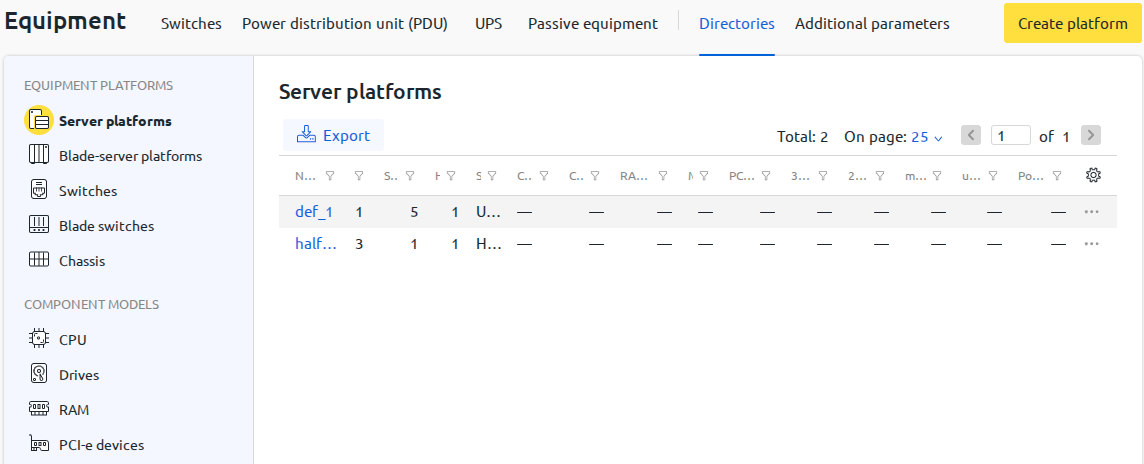
Managing directories
Adding a platform or model
To add a platform or model:
- Go to the section of the required hardware or component type.
- Depending on the selected section, click:
- Create platform;
- Add CPU model;
- Add a RAM model;
- Add a drive model;
- Add a PCI-e device model.
- Fill in the required fields using the instructions from the articles:
- for servers and blade servers — Platforms;
- for switches and blade switches — Adding a switch;
- for chassis — Chassis management;
- for server components — Inventory management module.
- Click Create or Add.
Copying a platform or model
To copy a platform or model:
- Click
 next to the required platform or model → Copy.
A window will open with the fields and images of the source platform or model filled in. A randomly generated suffix will be added to the platform or model name. - If needed, make changes to the platform or model parameters.
- Click Copy.
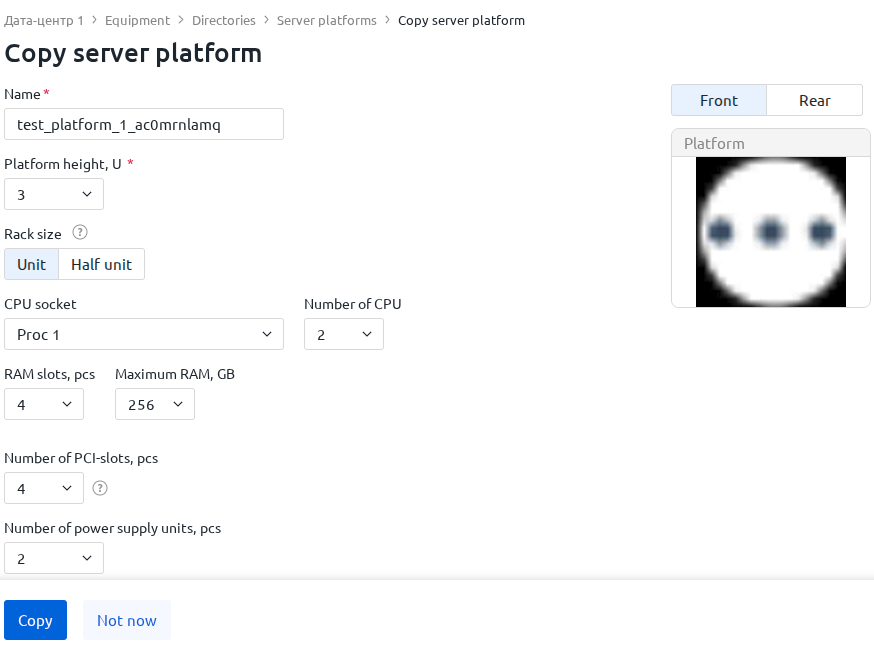
Editing a platform or model
To edit a platform or component model:
- Click next to the required platform or model → Edit.
- Change the required parameters.
- Click Save.
Deleting a platform or model
To delete a platform or component model:
- Click next to the required platform or model → Delete.
- Enter the ID of the platform or model to confirm.
- Click Delete.
Loading directories from DCImanager repositories
To add equipment to a platform faster, you can load directories with hardware platforms from ISPsystem repositories. The repositories contain prefilled cards of hardware platforms from various manufacturers. In the current implementation, you can load server and switch platforms from HP and Dell.
To load directories with hardware platforms from ISPsystem repositories:
- Click
 → Global settings → the Loading directories section → Upload.
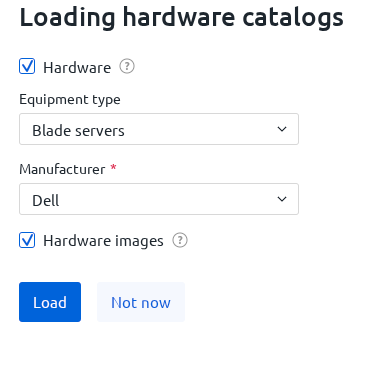
 - Select the Hardware type.
- If you need to load images, enable the Hardware images option.
- Click Upload. You can close the window immediately after the upload starts.
Loading directories runs in the background and does not block work in the DCImanager 6 web interface. You can track the upload progress in the Loading directories section of the Global settings page.
After a successful upload, you will receive a notification in a pop-up window in the platform web interface.
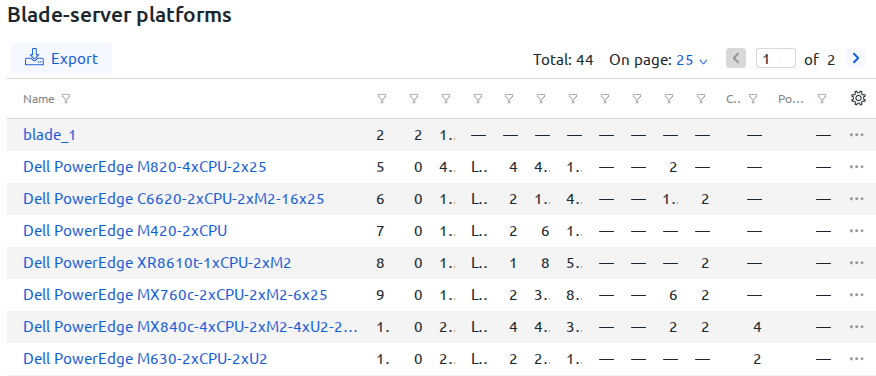
After the upload, platforms for the uploaded equipment will be created in the directories. Real model names are used as platform names. You can perform any operations with the uploaded platforms.
Re-uploading
If needed, you can start the directory upload again.
DCImanager 6 will not upload platforms if the directory already contains platforms with an exact name match. A platform will be uploaded again if the original was deleted or renamed.
Directories can occupy from 10 MB to 200 MB of disk space on the server running DCImanager 6. The exact size depends on the number of uploaded models and whether images are included.