 En
En
 Es
Es
Passive equipment is equipment that is not polled by the platform and can be installed in a rack. It includes:
- patch panel;
- optical cross-connect;
- optical termination panel;
- shelf;
- unit blank;
- KVM console;
- cable organizer.
You can add passive equipment to the platform for easier tracking, installation, and maintenance of data center equipment.
You can add equipment to the platform through the Other equipment section of the "Inventory management" module. We recommend adding the devices listed above through the Passive equipment, rather than through Other equipment, because the platform’s future versions will expand the ways you can interact with passive equipment.
Passive equipment in storage
To view or manage passive equipment through storage, go to Inventory management → Passive equipment.
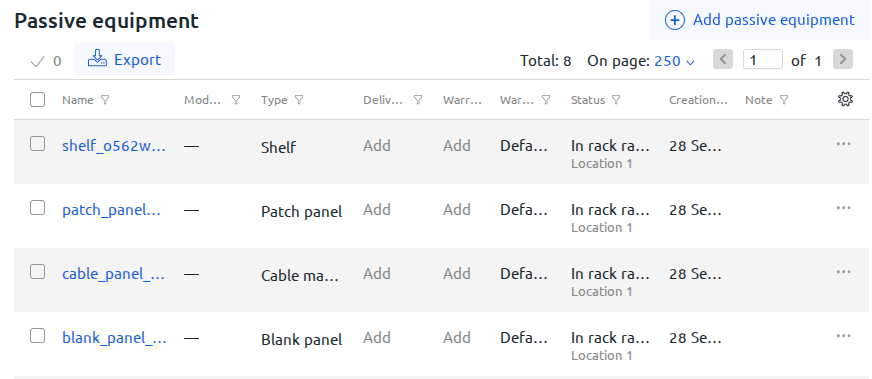
Adding passive equipment to storage
To add passive equipment to storage:
- Click Add passive equipment.
- Select Type.
- Enter Name or barcode.
- Specify the equipment Height in rack units.
- For patch panels, optical cross-connects, and optical termination panels, specify the Number of ports.
- Specify the Warehouse the equipment is linked to.
- Select Status. If the Reserved status is selected, specify the Reservation end date.
- If needed, specify parameters:
- Model.
- Weight, kg.
- for shelves: Maximum load, kg.
- Notes.
- Click Add.
Managing passive equipment in storage
To edit a passive equipment unit:
- Click
 next to the required equipment unit → Equipment parameters or Stock accounting parameters.
 - Change the required parameters.
- Click Save.
To change the equipment status:
- Click next to the required equipment unit → Change status.
- Select a new Status. If the Reserved status is selected, specify the Reservation end date.
- Click Change status.
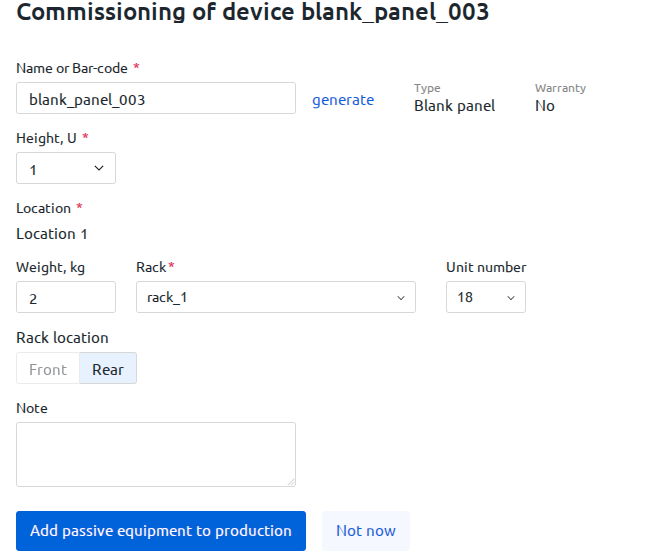
To put equipment into service:
- Click next to the required equipment unit → Install into rack.
- Specify the Rack and Unit number.
- If the equipment occupies part of a unit in depth, specify the Rack location.
- Click Add passive equipment to production.
To delete a passive equipment unit:
- Click next to the required equipment unit → Delete.
- Enter the equipment unit ID and Deletion reason.
- Click Delete.
Export to CSV
To export the passive equipment table to CSV on your workstation, click Export.
When exporting from the passive equipment table in storage, the file will have the following structure:
Passive equipment in use
To view and manage passive equipment in production, go to Equipment → Passive equipment.
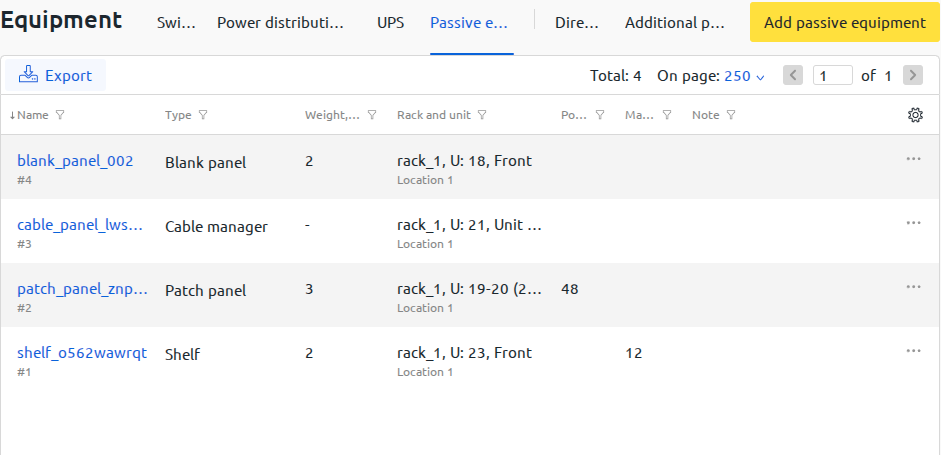
Adding passive equipment to a rack
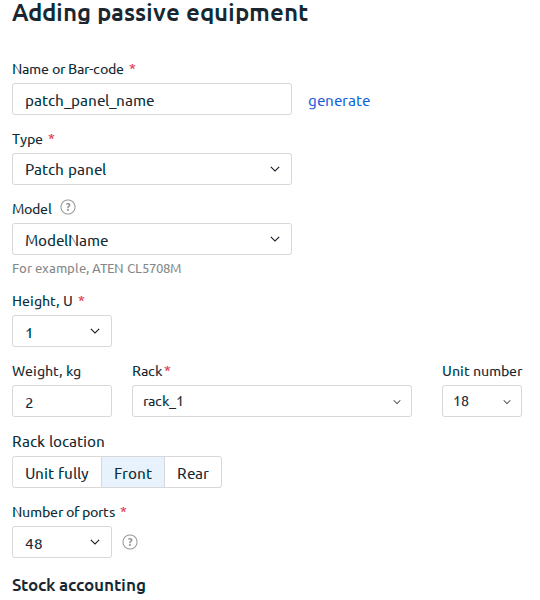
To add passive equipment that is installed in a rack:
- Go to Equipment → Passive equipment.
- Click Add passive equipment → New.
- Select Type.
- Enter Name or barcode.
- Specify the equipment Height in rack units.
- Specify the equipment location:
- Rack, Unit number;
- Rack location in depth: Unit fully, Front or Rear.
- Specify the Warehouse the equipment is linked to.
- For patch panels, optical cross-connects, and optical termination panels, specify the Number of ports.
- If needed, specify parameters:
- Model.
- Weight, kg.
- for shelves: Maximum load, kg.
- Notes.
- Click Add.
Managing passive equipment in production
To edit a passive equipment unit:
- Click next to the required equipment unit → Settings.
- Change the required parameters.
- Click Save.
To remove equipment from a rack:
- Click next to the required equipment unit → Change status.
- Select a new Status. If the Reserved status is selected, specify the Reservation end date.
- Click Remove and send to storage.
Export to CSV
To export the passive equipment table to CSV on your workstation, click Export.
When exporting from the passive equipment table in production, the file will have the following structure:
Passive equipment in racks
Passive equipment is displayed in the "Rack visualization module". When you hover over a unit with a shelf, the tooltip shows the free space above in rack units and millimeters. The free space is calculated up to:
- the nearest occupied, reserved, or service unit above the shelf;
- the end of the rack, if all units above the shelf are free.
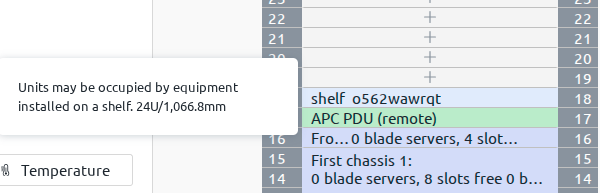
In the current implementation, it is not possible to explicitly specify that equipment is placed on a shelf and prevent other equipment from being installed.
Related topics: