 En
En
 Es
Es
You can use the Telegram messenger to send customers information about payment receipt, service activation, ticket response, etc. For more information, see Виды уведомлений. The platform uses a Telegram bot to send notifications.
A bot is an application that can send messages to a group chat or directly to a Telegram user. The platform interacts with bots via the Telegram API. A unique bot token is used for authorization. When configuring notifications, you will be able to select the chats to which the bot will send messages.
To configure sending notifications via Telegram:
- Create a bot in Telegram.
- Connect the bot to the platform.
- Add Telegram as a notification channel.
Configuration on the Telegram side
Create a bot in Telegram. To do this:
- Go to the link https://t.me/BotFather or search for it in Telegram —
@BotFather.
- Start the bot using the
/startcommand. - Create your bot using the
/newbotcommand. - Enter the bot name. For example,
Notify Me. - Enter a unique username for the bot. It must end with
bot. For example,notifyme876bot. - Save the bot name and the token value from the response.
-
To allow the bot to send messages to a Telegram group:
- Add the bot to the group.
- Enter any command in the group chat. For example,
/start.
- To allow the bot to send messages to a Telegram user, the user must open a dialog with the bot and click Start.
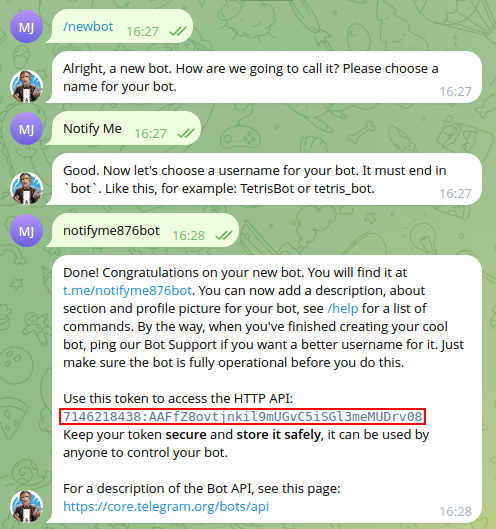
Bot creation example
Configuration on the BILLmanager side
Message gateway
To configure the gateway, go to Integration → Message gateways → Create button:
- Select Telegram.
- Select the Provider to which Telegram notifications will be linked.
-
Notification types — select the types of notifications that will be sent via this gateway. If a gateway is not configured for a notification, it will be sent via the first suitable gateway by sending method.
Examples - Enable the Activate after creation option.
- Enter the Bot name in Telegram.
- Specify the Token that you saved when creating the bot.
- Enter Telegram API URL if needed. Leave empty if you don't use proxy.
- In the Webhook URL field, enter an address in the format
{BILLmanagerURL}/mancgi/telegram_webhookto receive confirmations from Telegram. Telegram will send webhooks to this address confirming that the customer and the bot are linked. You can leave the field empty. In this case, the address of the server with BILLmanager will be used. - Select the Markup for messages from the Telegram bot:
- HTML;
- Markdown;
- MarkdownV2.
- Select the Use proxy option if you need to send requests via a proxy server. When the option is enabled, specify:
- Proxy URL — the address of the proxy server. For example,
socks5://host:1080,socks5h://host:1080, orhttp://host:8080; - Username — the username for authorization on the proxy server;
- Password — the password for authorization on the proxy server.
- Proxy URL — the address of the proxy server. For example,
- Click Finish.
Message templates
Configure message templates for Telegram notifications:
- Go to Settings → Message templates → Messenger messages.
- Fill in the required templates using the markup selected in the settings. By default, the templates are empty. You can use the same variables to create messages as for email notifications.
<% function EscapeForMarkdown(data) { %>
    <% if (!data || data == '') { return; }%>
    <% return data.replace(/[_*[\]()~'>#+\-=|{}.!\\]/g, "\\$&") %>
<% } %>
*Payment received*
Hello, *_<%= EscapeForMarkdown(user.realname) %>_*\!
We notify you about the receipt of payment for invoice number *<%= payment.number %>* in the amount of *<%= EscapeForMarkdown(payment.paymethodamount) %> <%= payment.currency.iso %>*\.
The current account balance is *<%= EscapeForMarkdown(subaccount.balance) %> <%= currency.iso %>*\.
Logging
The log of the billing platform interaction with Telegram is written to the /usr/local/mgr5/var/gwtelegram.log file.
Connecting Telegram notifications on the customer side
The customer can select one or more notification channels in the personal account. To receive notifications via Telegram, the customer:
- In the Personal account, goes to the Notifications menu.
- Enables the required notifications in the messenger column.
- In the Telegram field, specifies their Telegram login without
@. - Clicks Save.
- Goes to Telegram and writes to the bot. After that, BILLmanager links the bot and the user, and the customer can receive all the required notifications in the messenger.