 En
En
 Es
Es
BILLmanager has a built-in notification system. It is used to notify users about important events: automatic service renewal, registration confirmation, the need to top up the client account, and so on. Notifications (messages) are created and sent automatically.
All messages are divided into types depending on the sending method:
- Email notifications;
- SMS notifications;
- Emails in the Notifications module;
- Messages for messengers.
The message text is based on EJS-templates. To set up templates, go to Settings → Message templates → select the template type → click Templates.
Template setup
Each template can be assigned to only one provider. If no provider is selected, the message template will be used by all providers that do not have a personal template assigned.
Message templates support localization. You can configure a localized template only for active built-in localizations. Each template localization can use different markup.
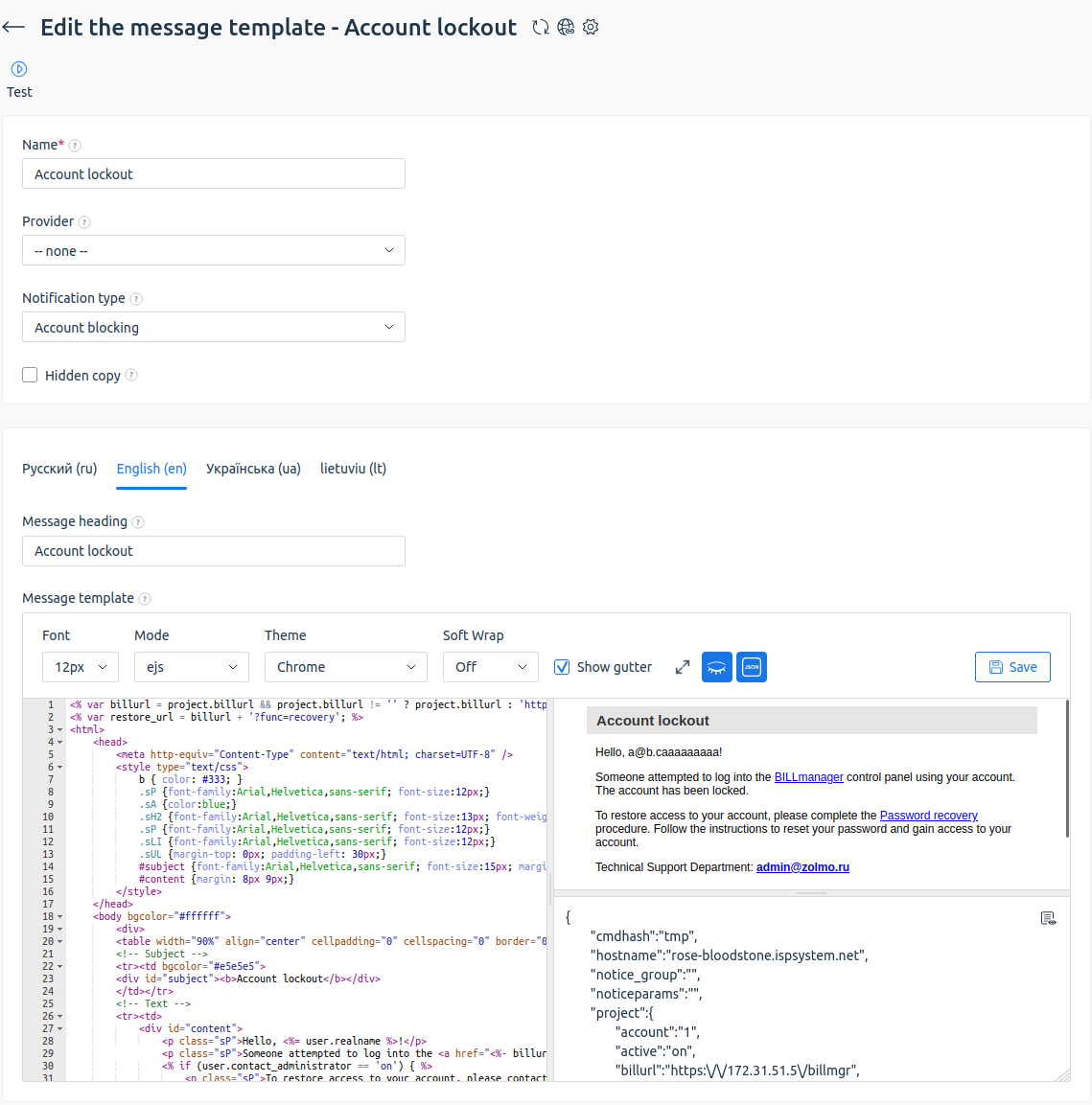
Template preview
You can view what the final message sent to the recipient will look like.
To enable the preview panel, click the  icon on the editing form toolbar. The result of template processing will be shown in the opened window, taking into account the selected localization and applied markup.
To disable the preview panel, click the  icon.
icon.
Test data for preview
To see the message with actual variable values:
- Enable the preview panel.
- Click the
 icon.
icon. - Click the
 icon.
icon. - Select an object to generate data for. For example, a user, service, or payment.
- Click Ok.
The system will automatically fill the template with the corresponding data, which lets you check that the variables work correctly before saving the template.
If needed, edit the JSON manually and click the preview area to apply the changes.
Unsubscribe
To add the ability to unsubscribe from a mailing list to a message template:
- Go to Settings → Message templates → Email notifications → click Templates.
- Edit the existing message template or Add a new one.
-
Add the code to the template.
<a href="<%- billurl %>?func=unsubscribe&cmdhash=<%= cmdhash %> target="_blank">link_text</a>
<div id="unsubscribe">
				<hr size="1" color="#D5D5D5"/>
				You received this email because you are registered on the <%= project.name %> website.
				You can unsubscribe from all news of the <%= project.name %> company, thereby confirming that you refuse to receive notifications about all important events and changes in the service operation, including financial and legal matters.<br/><br/>
        I understand the possible consequences and want to <a href="<%- billurl %>?func=unsubscribe&cmdhash=<%= cmdhash %>" style="color:#666" target="_blank">unsubscribe from the news</a>.
			</div>
Types of notifications that you cannot unsubscribe from:
- Password recovery;
- Email password recovery;
- Password has been successfully recovered;
- Abuse. Reaching the deadline to rectify discovered violations;
- Abuse. You have reached the deadline to rectify discovered violations;
- Abuse. You have exceeded the maximum number of abuse scores;
- Service profile registration errors;
- Email activation;
- Export personal data;
- Gateways. Email confirmation required;
- Gateways. Cannot identify the client by his email address;
- Gateways. Your email has been successfully confirmed;
- Gateways. You cannot create a support ticket as you don't have free support incidents;
- Gateways. Failed to verify sender's email;
- Check payer by email;
- Account verification by email;
- Send invoice;
- New client has been registered;
- Notification about payer creation.
Copying messages to other notification channels
You can duplicate messages through all configured notification gateways. For example, SMS or Telegram. To do this, enable the Copy to notifications option in the template. To enable the option:
- Go to Settings → Message templates → Email notifications → click Templates.
- Select the Message from provider template → Edit.
- Enable the Copy to notifications option.
- Click Ok.
If you need to send messages only by email or set up separate mailings, disable the option.
For example, you need to organize separate mailings for different communication channels:
- for email — with HTML markup and full formatting;
- for Telegram — with text markup adapted to a specific channel.
To do this:
- Disable the Copy to notifications option.
- Create separate mailings or set up separate message templates specifically for messengers .
Security
Isolating the environment
Starting with version 6.124, templates are generated in an isolated environment to protect against vulnerabilities. When installing or upgrading BILLmanager, the billmanager-plugin-template-processor software package is installed. This package:
- Sets up the containerization environment:
- in Ubuntu — Docker;
- in AlmaLinux — Podman.
- Downloads an image with scripts to safely generate templates.
You can disable the use of the isolated environment. For example, if templates are not formed correctly. To do this:
- Add the
Option DisableTemplateProcessorto the /usr/local/mgr5/etc/billmgr.conf configuration file. For more information, see the Configuration file article. - Restart the platform:
/usr/local/mgr5/sbin/mgrctl -m billmgr -R