 En
En
 Es
Es
The tariff plan for the client is a set of resources that the provider offers for a particular cost. A client can find the list of available tariff plans in his/her personal account on the service ordering page. Each client can see the full list of tariff plans without authorization in the billing system on the Storefronts or on the website it is integrated with.
The tariff plan for BILLmanager administrator is a set of parameters which will be used to automatically open the services in a third-party control panel. In other words, it is a service template with flexible customization. The tariff plan settings determine the general rules of interaction between customers and services.
The administrator can see the full list of tariff plans created in BILLmanager on the Products page → Tariff plans.
Creating a tariff plan
To create a tariff plan, go to section Products → Tariff plans → click Add:
- Select the provider that will use the created tariff plan.
After completing the configuration, it is impossible to assign the tariff to another provider. - Product type — select the product type. If you enable the flag Activate after creation, then ordering a service under the created tariff will be available immediately after exiting the tariff plan addition wizard.
- Tariff plan parameters — perform tariff configuration. Description of each parameter is in the following sections of the article.
The tariff plan has two parameters that are displayed only at the creation stage:- Service processing module — select processing modules that will process services of this tariff plan. The tariff will not be available for ordering if no service processing modules are connected to it. After creating the tariff plan, you can configure processing modules for the tariff in the section Products → Tariff plans → click Processing modules.
- Create all available add-ons — if the flag is checked, all available add-ons will be automatically added to the tariff. After exiting the tariff plan creation wizard, the parameter becomes unavailable.
When creating a tariff plan, it is necessary to configure a data center. For some product types, this is a mandatory requirement. The data center is not set directly in the tariff, but in the service processing module connected to the tariff. To set a data center for a tariff:
- Create or edit a service processing module:
- Go to menu Integration → Service processing modules.
- Click Add or View → Edit.
- Select the required Data center from the list.
- Complete the processing module configuration and click Ok.
- Connect the processing module to the tariff in the section Products → Tariff plans → Processing modules.
To change the parameters of a created tariff plan, go to section Products → Tariff plans → select tariff plan → click Edit.
Configuring tariff plan parameters
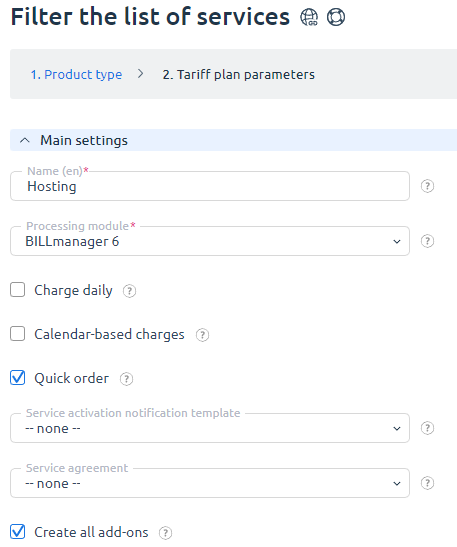
Main settings
In this section, basic tariff plan settings are defined.
- Name — the local name of the tariff plan. It is displayed on the service order page and on the shop-window.
- Account Template — a template used to create a service. All account templates are configured in a third party control panel. Only the name of the already created template is shown in the tariff plan settings. The account templates may not be used for some types of services. In such cases, the value of the field will not affect the service opening process.
- Processing module — select processing modules that will process services of the tariff plan. Tariffs that are not connected to service processing modules will not be available for ordering.
- Name for employees — specify the tariff plan name that will be displayed only for provider employees. The field allows provider employees to distinguish between tariff editions with the same client-facing name. Optional field.
- Charge daily — the checkbox enables charges on a daily basis. Learn more in Billing Cycle.
- Name for employees — specify the name of the tariff plan that will be displayed only for the provider's employees. The field allows the provider's employees to distinguish between tariff editions with the same client name. Optional field.
- Calendar-based charges — it adjusts the service renewal date to the 1st of every month. When it is activated, the additional Pro-rata day field appears. Learn more.
- Pro-rata day — if the service is ordered before this date, it will be active till the end of the current month. If the service was ordered on the pro-rata day or later, it will be active till the end of the next month. Learn more in Billing Cycle.
Example - Quick order — enables the quick service order for the selected tariff.
- Service activation notification template — a notification which will be sent to a client email upon service activation.
- Service agreement — a document template that clients will need to accept when ordering a service.
Additional settings
For more details, see articles in the section Products/Services Sales Settings about configuring a tariff plan for each product type.
Prices
This section includes settings for the cost of the tariff plan.
After filling in the field Per month, the validator automatically calculates the service cost for the remaining periods. You can change the prices assigned by the validator. The cost is specified in the provider's currency for which the tariff plan was created. You can disable the order period for one or several periods. The selected period will be unavailable for ordering new services and for renewing services that do not use this period.
- One-time — specify the cost of ordering or renewal for an unlimited term.
- Setup price — specify the amount that will be debited once when purchasing a service with this tariff plan.
- Renewal at special price — enable the option to include service renewal at a special price. Use if the cost of service renewal differs from the cost of acquiring a new one. Renewal periods correspond to the periods for which the service can be purchased.
- Number of renewals by period — set a limit on the number of renewals for a specific period. When enabling the option, the option Prohibit service period change will be activated. Select the option Clear renewal statistics for the renewal quantity limit to reset the current renewal counter for all services of this tariff. This will allow clients to renew services for which the limit was previously reached. You can reset the renewal counter for all periods or for a specific one (for example, month or three months).
- Prohibit service period change — enable the option if services of the tariff require prohibiting service period change.
If renewal count limits are set for the tariff, the option Prohibit service period change is selected automatically and becomes unavailable for manual change.
Policy
The section contains basic policy settings for services of the tariff plan.
The administrator can control the interaction between a client and services by using this tariff plan policy.
- Allow for client groups — select the client groups for which the tariff is available for ordering and switching. If a group is included in the list, the tariff name will be displayed in the client group card in the “Used” section. For more details, see the article Client groups.
- Forbid to client groups — select the client groups for which the rate is not available for ordering and switching. If a group is included in the list, the rate name will be displayed in the client group card in the “Used” section. For more details, see the article Client groups.
- Minimum order period — when this period is over, a client can cancel the service. In the case of Daily charges, this value may affect the amount of funds reserved for the service.
- Minimum period length — the minimum period in days or months.
- Trial period — the number of days of the trial period.
- Number of trials available for order — the maximum number of trial copies of services for all clients on this tariff plan.
- Number of services available for order — the maximum number of services that a client can order. The client won't be able to order add-ons for this tariff plan once reaching this limit.
- Simultaneous services order — ability to simultaneously add several services to the cart. If the option is selected, specify Maximum number of services that a user can add to the cart at once. A large maximum number of simultaneously ordered services can affect billing operation: increase server load, slow down order processing, and lead to timeouts during mass service creatio
- Late renewal fee — a client will be charged this late renewal fee while renewing a service. It can take the following parameters:
- Without fee — late renewal doesn't apply the fee.
- Fixed amount — the fixed renewal fee will be added to the cost of the renewal.
- Percent from the price for late renewal — the percent from the service price for the late renewal will be added to the cost of the renewal.
- E.g. Late renewal fee is set to Percent from the price for late renewal and Price percent is set to 50. The service expired on September 7, while the renewal was only on the 12th.
- To calculate the fee amount, the system will calculate the service cost for each day (even if the service was purchased for a year), e.g. 10 EUR per day. Then the late renewal fee will be calculated: 5 days for 10 EUR - 50 EUR. The total fee equals the percentage of the service price for the late renewal. Since the field Price percent indicates 50%, the total fee will be 25 EUR.
- Renew from suspension date — the cost of the renewal fee doesn't change. The service validity will be calculated from the service suspension date and not from its renewal date.
- E.g. the service expired on August 3, while the renewal was on the 15th. After the renewal, the service will be active not until September 15 but until the 3rd. In other words, the fee affects service duration as opposed to service price.
- Auto-deletion period — a period in days that will have to pass before a suspended service will be deleted. You can leave the field empty.
- Suspend service on weekends — a policy of automatic service suspension on weekends if there is not enough funds on the client's account to renew the service. The default value is the value defined for the product type. It can take the following parameters:
- Suspend services — if there are no funds on the customer's personal account, the service will be stopped by the system, regardless of the weekday.
- Do not suspend services — the service will not be stopped on Saturday or Sunday even if there are no funds on the client's personal account.
-
Disable auto-renewal — policy for automatic renewal of services under the tariff plan. Allows overriding the auto-renewal policy set for the product type. Can take the following values:
- Use product type settings — the policy from the settings of the corresponding product type will be used for the tariff. Default value;
- Disable auto-renewal — automatic renewal will not be triggered for services under this tariff. Services can be renewed only manually by the client or provider employee. When selecting this value, the field Auto-renewal is hidden when ordering and editing a service. The client and administrator cannot enable auto-renewal for a service if it was disabled in the tariff;
-
Enable auto-renewal — automatic renewal will be triggered for services under this tariff when the expiration date is reached.
When disabling and subsequently enabling auto-renewal, the renewal counter is reset.
- Tariff change policy — a tariff plan change policy. The payment method for the new tariff is determined depending on the selected parameter. If the Daily charge parameter is active then the tariff change policy will not work. It can have the following parameters:
- Change period — the service validity will be recalculated. The validity period will be increased if the transition to a cheaper tariff plan is made. The validity period will be reduced if the transition to a more expensive tariff plan is made.
- Add funds/refund — you shall do one of the financial transactions: add more funds or do a refund: additional funds if the transition to a more expensive tariff plan is made; the refund if the transition to a cheaper tariff plan is made. The service validity will not be changed if the tariff plan has been changed.
- Tariff cannot be changed — you can not change the tariff plan for this service.
- Extra charge only, no refund upon downgrade — there is no refund for switching to a cheaper tariff plan when the tariff plan is changed. You can return to the previous tariff plan without additional charges if the tariff plan is changed for a cheaper one. It is necessary to pay the difference in the tariff cost if you switch to a more expensive tariff plan.
Example - Full payment for a new tariff plan — to change the tariff plan, you need to pay a full new tariff plan cost. The tariff change immediately after payment. The validity period of new tariff plan is calculated depending on the value of the "Renew from" setting. Possible values: from current date, from service expiration date. Example
When setting the policies Add funds/refund, Full payment for a new tariff plan and Extra charge only, ho refund upon downgrade a client can't change the tariff plan of one provider to the tariff plan of another provider.
- Additional resources order policy — a method of calculating the additional resources cost if the order occurs during the service validity period. The possible parameters are:
- Price before a service expiration date — the add-on cost will be calculated before the service suspension date.
E.g. on December 10 there is an order for the service additional resources which is active until December 20th. The addon cost will be calculated only for 10 days. - Full price over the whole period — the total addon cost regardless of the service expiration date. The last service paid period (or the last renewal period) is used as the addon validity period.
Examples
- Price before a service expiration date — the add-on cost will be calculated before the service suspension date.
- Addon cancellation policy — it can take only two values: the refund to the balance or deletion without any refund.
- Tariff plan end date — the date after which you can't order or extend the fare.
- Notes — the text field for any comments to the tariff plan. Comments are visible only to company employees.
Tariff plans list caching
By default, the interface displays 12 tariff plans on each page. When accessing the list of tariff plans via API, you can increase the number of records, however, with a value greater than 50, the loading time may increase.
To speed up loading of repeated requests, the platform caches prices of tariff plans and add-ons. The first request to the list of tariff plans may take longer, subsequent ones — faster due to using data from the cache.
The cache is reset automatically upon change of:
- prices of tariff plans and add-ons;
- tariff plan configuration (adding or removing options);
- tariff plan parameters or related discounts.
By default, caching is disabled. To enable caching of tariff plan cost calculation taking into account discounts for each client, add the option Option EnableGlobalDiscountQueryCache to the configuration file /usr/local/mgr5/etc/billmgr.conf. For more information, see the Configuration file article.
Service order configuration
The settings of this section allow you to create a unique design for each tariff plan.
- Sorting — priority of sorting the tariff plan in the general list. Sorting occurs in ascending order.If there are several tariff plans with the same sorting priority, they are sorted in alphabetical order.
- Upload icon — an icon for a tariff plan that will be displayed to clients on the order form. If not used, a client will see a product type icon. The standard size is 32*32 pixels.
- Order icon — the current tariff plan icon.
- Show addon icons — this option makes it possible to configure and display resources icons during service order and modification.
- Tariff description — a tariff plan description visible to users of the selected localization. The
__localname__macro is available in this field. It presents the tariff plan name for localization by default. The value that the macro substitutes can be seen in the field hint. - Information for site — the field for service information. Here you can add any information necessary for BILLmanager integration with the website. The entered information is not used anywhere, so this field is for storing information only. The recorded text is visible only in the tariff plan settings.
- Labels — the tariff labels can be used to set filters on the order page. Each label shall be started with a new line.
Recommendations for configuring related application and server tariffs
When ordering an application, the platform uses two tariffs: the application tariff and the server (infrastructure) tariff. We recommend during configuration:
- do not use the server tariff for separate ordering by clients if it is intended only to ensure application operation;
- do not limit the server tariff by renewal count and do not disable auto-renewal for it;
- ensure matching order periods for application and server tariffs;
- take into account that the platform ignores server tariff limits on renewal count and auto-renewal prohibition when renewing an application;
- take into account that the platform updates the auto-renewal period for the server when manually renewing an application with a period change.
Archiving a tariff plan
Tariff plans can be archived. In the main menu go to Products → Tariff plans → select one or several tariff plans → click Archive.
Archived tariff plans continue to work and are available for renewal for existing clients, but are not available for purchase.
but are not available for purchase to clients and are displayed in a separate Tariff Plan Archive list. To access the tariff archive, go to Products → Tariff plans and click Archive. The following options are available in the archive:
- Edit — edit the tariff plan;
- Delete;
- Config. — configuring the tariff plan content;
- Dependencies — configuring the connection between the additional resources of the tariff plan;
- Change tariff — set the rules for changing the tariff plan;
- Access — configuring the tariff plan ordering rules;
- Modules — select the processing modules of the tariff plan;
- History of actions with the tariff plan;
- Restore — return the tariff plan to the list of active plans.
When restoring a tariff plan from the archive, the platform will ask you to confirm the action. Check if you want to Activate tariff plans after restoring.