 En
En
 Es
Es
The AI assistant module lets you add an AI chat to the client area. This lets clients solve consultation questions on their own and can reduce support costs. You can connect an adapter for an external language model (LLM) or create your own.
The module supports the following main scenarios:
- AI dialog in the client area based on help information. You can:
- use company documentation, general summaries, and other materials as the basis for the LLM;
- define the data set for the knowledge base.
- processing support tickets with AI.
You configure the RAG and LLM components outside the platform. The module handles data exchange between the LLM and the platform. In the settings, you can:
- choose an adapter (OpenAI, DeepSeek, or a local solution), a model, and set a system prompt;
- limit sessions, messages, and history length;
- configure the chat appearance through CSS and custom text;
- choose the reply format in tickets: internal comments for staff or replies to the client on behalf of staff.
After installing the AI assistant module, you will have access to the sections needed to configure integration parameters with RAG methods.
Installing the module
To install the module, go to Integration → Modules → AI assistant → Install.
After the module is installed in BILLmanager, the following become available:
- the AI assistant section in the left menu. The section includes the following subsections:
- Sessions — history of user communication with the AI assistant;
- Settings — settings for the chat parameters for communicating with the AI assistant in the platform admin panel;
- the chat for communicating with the AI assistant in the client area. The button to start a dialog is available in the lower-right corner of the interface.
Configuring the module
To configure the module, in the left menu go to AI assistant → Settings. You can:
- Add an AI assistant integration. For details see the Creating the assistant section;
- Edit integration settings;
- Delete previously added AI assistant settings;
- Enable — turn on the previously configured AI assistant;
- Disable — turn off the previously configured AI assistant.
Creating the assistant
To create an AI assistant, in the left menu go to AI assistant → Settings → Add:
- In the General block, configure the fields:
- Provider — select the provider whose clients will use the AI assistant.
- Adapter — select the integration adapter for connecting to the language model. For example,
OpenAI,DeepSeek, or a local solution. The adapter defines the communication protocol and request format. - Model — specify the ID of the language model the assistant will use. For example,
gpt-4oorclaude-3-5-sonnet. The response quality and request processing cost depend on the selected model.
The DeepSeek adapter uses the default language model. For example, for version 6.150 it isdeepseek-v4-flash. - API URL — enter the language model provider's API endpoint. This address is used to send requests from the platform to the external service.
- API key — specify the secret key used to authenticate requests to the language model API. The key is stored in encrypted form and passed in request headers.
- Session limit — set the maximum number of simultaneous dialogs with the AI assistant for one user. When the limit is reached, new requests are rejected until the user hides sessions. If you leave the field empty, the number of sessions will not be limited.
- Message limit per day — set the maximum number of messages a client can send within a day.Days are independent of server time and are counted in UTC+0: from 00:00 to 00:00 the next day. When the limit is reached, new messages are not accepted until the start of the next day. The limit applies to all user sessions. It helps control token usage and budget. If you leave the field empty, the number of messages will not be limited.
- Message history limit — set a limit on the volume of the current chat that is passed to the AI when generating a response. Only the latest messages from the session are counted: the specified number of recent exchanges between the client and the assistant. Earlier messages remain visible to the client, but they are not included in the request context. This limit helps reduce token usage and speed up responses in long dialogs. If you leave the field empty, the full chat history is passed to the AI with each request.
- Maximum message length –-- specify the maximum length of an incoming user message. Messages that exceed the limit will not be sent. The user will see an error message.
- Allow for client groups — select the client groups that are allowed to use the AI assistant.
- Server-Sent Event — enable this option so that assistant responses are delivered in real time through a streaming protocol. If disabled, responses are returned after they are fully generated.
- System prompt — enter an instruction for the language model that defines the assistant's role, tone, and behavior rules. The prompt affects the response style and available actions. Prompt exampleExample of configuring the "Basic" block
- In the Design block:
- AI chat icon — upload an image to display in the chat widget. Recommended format: PNG or SVG, size up to 100×100 pixels.
- Reset logo — select this option to remove the uploaded icon and restore the default value.
- Custom CSS — specify styles to change the chat window appearance. Use only safe CSS rules; scripts and HTML are not supported. Example of custom CSS
- In the Messages block:
- Restore defaults — select this option to reset the chat interface texts to their predefined values.
- Chat title — enter the title that will be shown in the chat window header.
- Greeting header — specify the title text on the new chat session page. The client will see the message when they open the chat window.
- Greeting — enter additional text under the title on the new chat screen.
- In the Support block:
- Process tickets — enable this option so the AI assistant starts processing support tickets. If the option is enabled:
- Specify the Employee on whose behalf tickets will be processed. This field is required.
- Select the reply method for the ticket:
- Internal comment — the assistant's reply is added as a note to the ticket, visible only to support staff;
- Message to client — the reply is sent to the client on behalf of the selected employee
- Specify the Number of agent replies — set how many times the AI assistant can reply in the dialog before the request is automatically handed back to the assistant or the ticket is closed.
- If needed, select Use another adapter to use a separate adapter or model for support tickets instead of the main one. If you select this option, configure the additional adapter parameters.
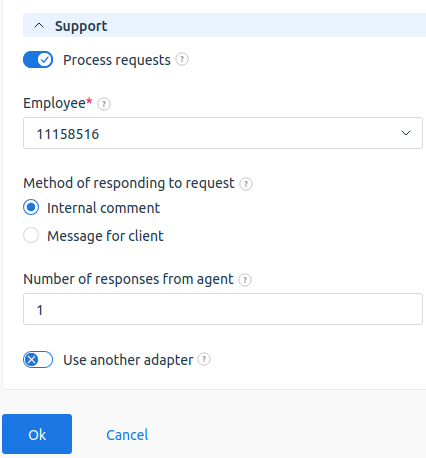
- Process tickets — enable this option so the AI assistant starts processing support tickets. If the option is enabled:
- Click Ok to save the changes.
Using the AI assistant chat
To ask the AI assistant a question:
- Click the icon in the right corner.
- In the chat window that opens, type your question.
- Click Submit.
To stop the AI assistant from generating a response, click the  button.
The number of messages is limited by the provider. If the limit is exceeded, the system will notify you. If the client exceeds the session limit set by the provider, to start a new session they must delete one of the existing ones. After the client deletes a session, it is hidden from the total count but is not removed from the database and remains available to the provider.
If a message is being generated by the LLM model, the user cannot create a new session or send a new message in an existing session. Sending becomes available when the response to the message has been fully generated.
Viewing previously created chat sessions
The client's chat history with the AI assistant is saved. The client can:
- view the history;
- continue the dialog with the AI assistant.
To view session history, go to AI assistant → Sessions. You can:
- Open the user's chat. The provider has access to all user dialogs;
- Delete the chat with the AI assistant — click to delete the session from the database;
- filter dialogs By client;
- Sign in to the control panel with user rights.
The session list shows the following columns:
- session id;
- Date of first message — the date and time when the first request from the client to the AI assistant was sent. For example,
2026-06-10 09:56:30; - Subject — the conversation subject. It is generated automatically from the words in the client's first message. For example,
How do I configure a tariff?; - Username — the user on whose behalf the conversation was held;
- Client — the client's email on whose behalf the conversation was held.